Users with the appropriate license type and Profile permissions are able to access Tabulate Lite.
Launching Tabulate
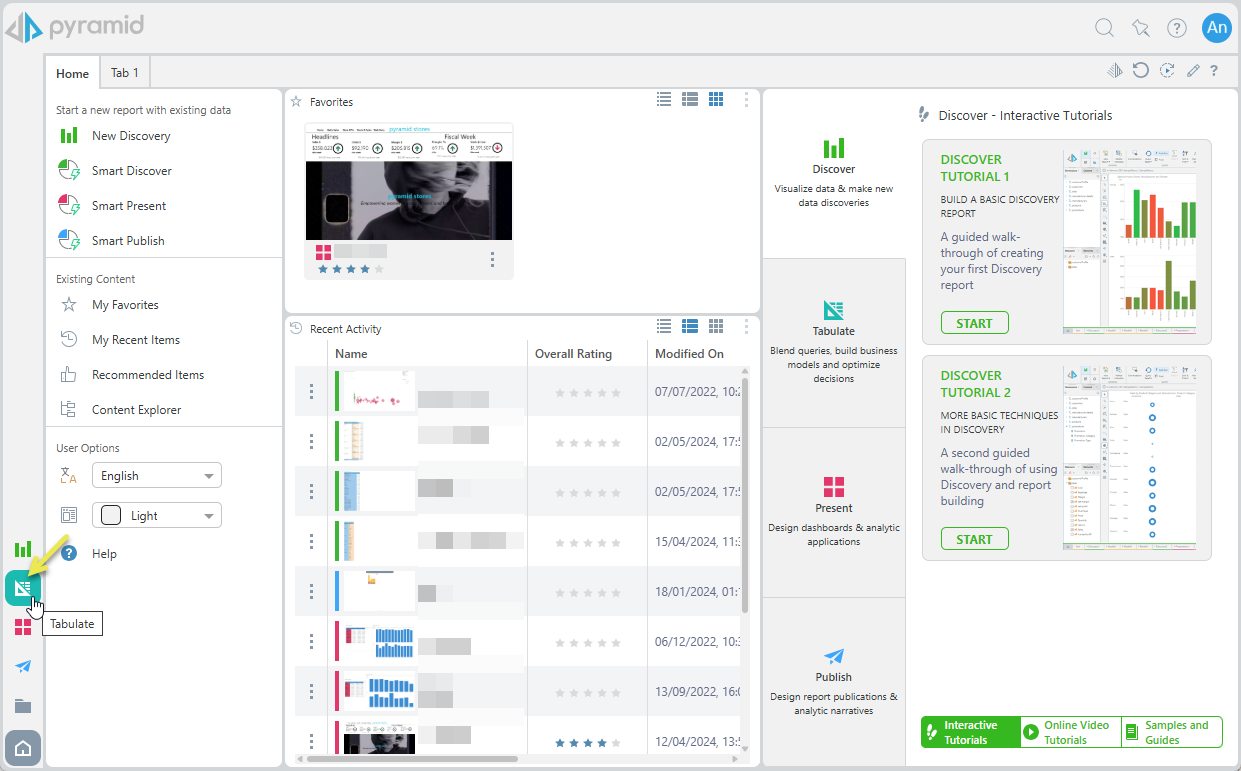
To launch Tabulate, click a Tabulate access point from the home page. If the profile you're assigned to has been given Tabulate Lite access, this button will launch the Tabulate Lite app.
App Tabs
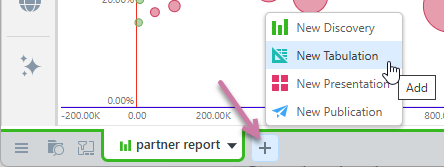
You can also open a new Tabulation from within the apps by clicking + > New Tabulation from the Apps Tabs menu:
Content Explorer
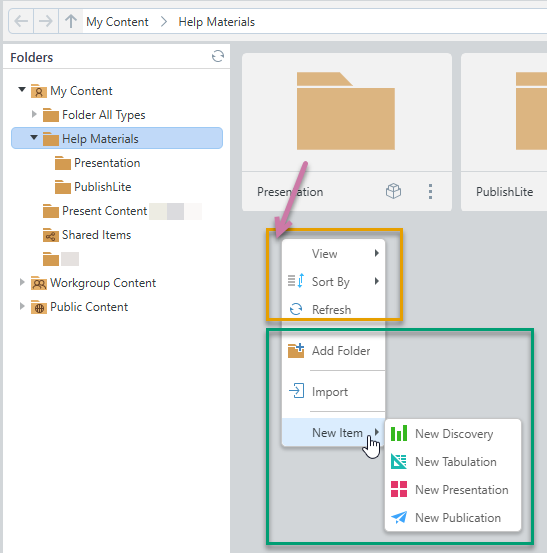
You can also create a New Tabulation by right-clicking the background in the Content Explorer and choosing New Item > New Tabulation from the context menu. You will then be prompted to provide a name for your new tabulation before you can begin the process:
Tabulate Lite Workspace
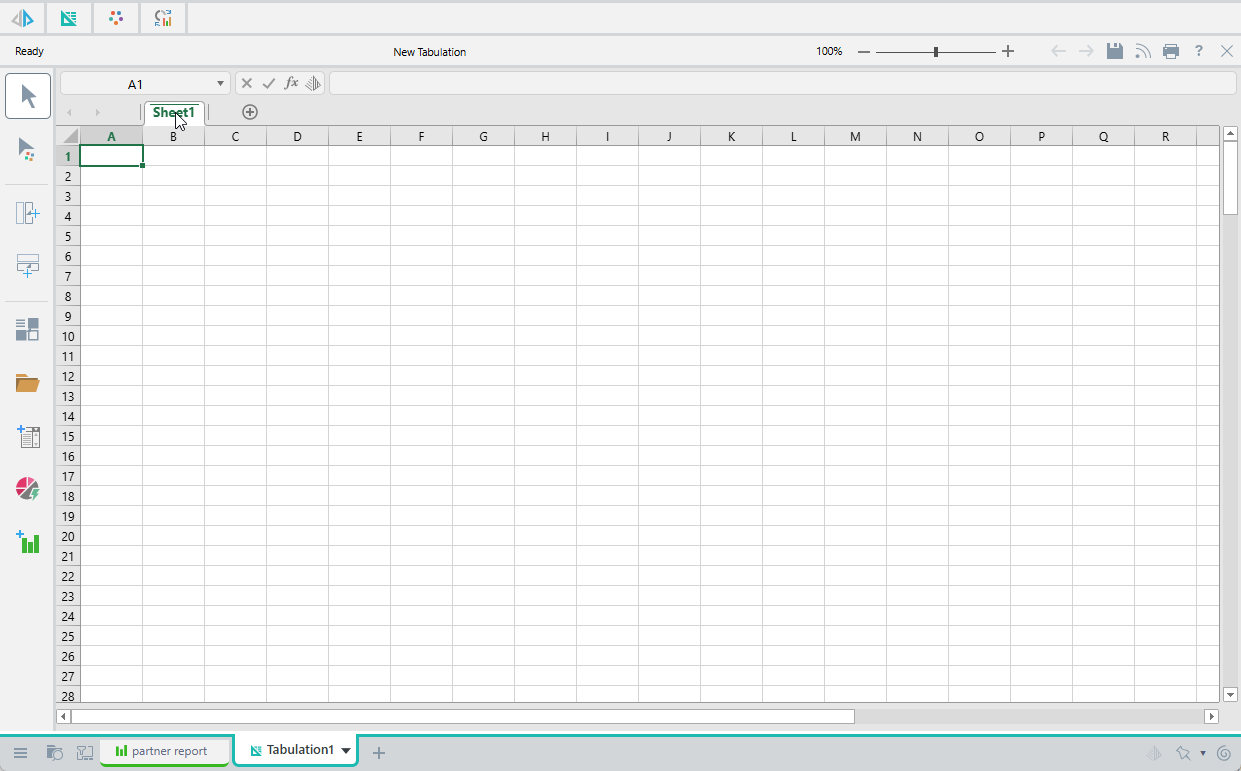
Whichever method you use to start Tabulate, once selected, the Tabulate Lite workspace is displayed:
Related information
Existing Tabulations
This topic explains how to launch Tabulate Lite and create a new tabulation, but if you have access, you can also open existing tabulations that you either created yourself or other people have created and shared with you.
Accessing Tabulate Pro
Following the steps above opens the Tabulate Lite app if you are an analyst user or if Lite access is selected in your Profile. The following topic describes how to configure your profile to enable the Pro or Lite version of the app.
Note: For information about accessing Tabulate Pro, see Accessing Tabulate Pro.